Receiver
The Receiver tab configures how the flight controller talks to your RC receiver: protocol selection (serial RX protocols, PWM, RX-SPI, etc.), channel mapping, and live channel monitoring.
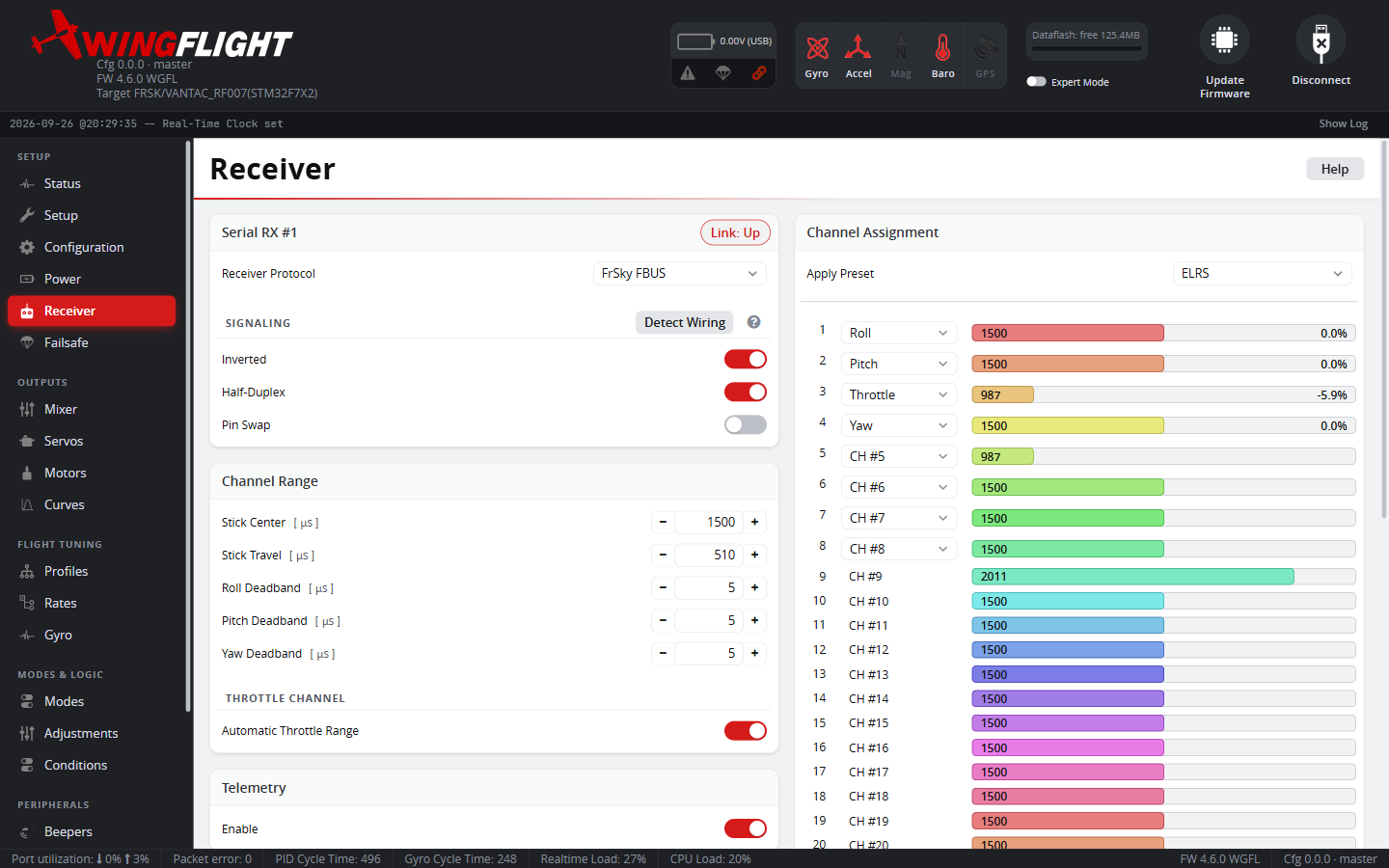
Protocol and signal options
Once a serial RX protocol is selected, three signal-level switches appear that matter more than they look like they should -- get the wrong one and you'll see no signal at all rather than a subtle problem:
- Serial Inverted flips the signal polarity. Turn it on for F.Port and F.Bus. Leave it off for Futaba S.BUS and S.BUS2 -- the flight controller already allows for S.BUS being inverted; turn it on only for a receiver that outputs non-inverted S.BUS. Not supported on F4-based boards.
- Half Duplex uses the Tx pin for both sending and receiving -- required for SBUS2, F.Port, SRXL, and SRXL2. Plain S.BUS leaves it off.
For Futaba receivers, use Futaba S.BUS2 if the receiver has an S.BUS2 port (control and telemetry on one wire), or Futaba S.BUS if it doesn't (control only). The receiver must be set to output the same one. - Pin Swap swaps the Rx/Tx pins, for wiring that comes in reversed.
For FrSky receivers set to F.Bus or F.Port2, pick FrSky FBUS. They are the same protocol at two speeds, and the flight controller finds the speed the receiver uses and keeps it once good frames arrive; telemetry starts after that. Changing the receiver between F.Bus and F.Port2 needs no change here.
ExpressLRS switch mode
ExpressLRS receivers use the TBS CRSF protocol.
Warning
Wingflight only supports the ExpressLRS Full Res 16ch Rate/2 switch mode, at the 100Hz Full or 333Hz Full packet rate. It sends all 16 channels at full (10-bit) resolution, including channel 5, at half the packet refresh rate.
The other switch modes send channel 5 (AUX1) only as a two-position arm switch. Wingflight uses channel 5 as a normal channel, for example for flaps and flaperons, so in those modes it can only be fully one way or the other.
When the protocol is TBS CRSF, the Receiver tab, the Setup Wizard's receiver step and the Mixer Setup Wizard's flap options show this warning.
SRXL2 full-size receivers
Some Spektrum full-size receivers (e.g. the AR6610T) need to see a valid
SRXL2 handshake within about 200ms of power-on, or they revert their
receiver port to plain PWM instead of SRXL2 -- which can be too fast for
the normal handshake to win the race during boot. When the FC's own SRXL2
unit ID is set to 0 (bus master), it now sends the first handshake
packets very early during boot, before this can happen, then continues
the normal handshake process as usual.
This is CLI-only -- set it with set srxl2_unit_id = 0. Note the
default is 1, not 0, so this needs setting explicitly for a receiver
that requires it.
Channel Range
Stick Center and Stick Travel set the channel value your sticks rest at and how far they move from it, in µs.
Roll Deadband, Pitch Deadband and Yaw Deadband set how far each
stick must move from center, in µs, before it counts as an input (default
5 µs each, range 0-100). Each axis is set separately. Older firmware had one
shared Roll/Pitch value, a leftover from helicopter "cyclic" controls. The
CLI settings are roll_deadband, pitch_deadband and yaw_deadband.
Channel Assignment
Different transmitter brands don't agree on which physical channel carries
which stick -- FrSky/ELRS/Futaba send AETR (Aileron, Elevator, Throttle,
Rudder) while Spektrum/JR/Graupner send TAER (Throttle first). The
channel order preset dropdown remaps for your brand in one click,
instead of manually reassigning each channel; the live bars next to each
channel let you confirm the remap actually matches real stick movement
before wiring up the Mixer.
Up to 24 channels are shown. Most receiver protocols carry 16 or 18; FrSky F.Bus in its 24-channel mode carries all 24. Channels 19-24 can be used for modes, adjustments, failsafe and as Mixer inputs, for example to drive bus servos 19-24 with a 24-channel F.Bus output.
RSSI can be read from Auto (protocol-reported, if the link supports it), the board's analog RSSI ADC input, or repurposed from any spare channel (CH #5 onward) your receiver outputs an analog-ish RSSI value on.
Telemetry Sensors
Selects which telemetry values are sent back to your transmitter/OSD, and for protocols with a fixed transmission sequence (e.g. Smart Port), what order they go out in -- data earlier in the list updates more often. Available sensors depend on what the connected protocol and firmware build actually support (e.g. RPM only appears with a configured RPM source).
New configurations start with the sensors the WingFlight Lua suites use, including System Status and System Config in the Status group. These two carry the flight controller's status (arm state, receiver links, failsafe, GPS, profiles and more) for the radio's callouts and dashboard alerts. See Telemetry sensors for the default list and what each status bit means.
Virtual TX
For bench-testing without a real transmitter bound, a virtual RX input tool is available (desktop app only) to simulate channel input.
Primary Receiver / Backup Receiver 1 and 2 (Backup RX Input)
The main receiver's own protocol box is labeled Primary Receiver. Its title bar always shows a Link badge for the main receiver's own live signal state, whether or not a backup port is configured.
If a serial port is assigned the Receiver: Backup 1 function on the Configuration tab, a second box, Backup Receiver 1, appears below it; a port assigned Receiver: Backup 2 adds a Backup Receiver 2 box in turn. Each has:
- A Protocol dropdown (None, Futaba S.BUS, FrSky FBUS, FrSky F.PORT,
Jeti EXBUS, or TBS CRSF) --
Noneis the default, meaning the port is assigned but not yet decoding anything. FrSky FBUS also covers F.Port2 receivers, as on the main receiver. - Inverted, Half-Duplex, and Pin Swap switches, same meaning as
the equivalent settings for the main receiver but independent of them --
this is a different physical UART, and each protocol has its own natural
wiring convention (SBUS is inverted by default; every other supported
protocol isn't), so
OFFalways means "this protocol's normal wiring." - Link and Active Source badges in its own title bar, live-updated, so every box shows its status right where you'd configure it. Active Source names the receiver in control: Main RX, Backup 1 or Backup 2.
Changes to any of these fields need Save & Reboot to take effect, same as any other serial-port setting.
Once a backup protocol is selected and reporting data, every entry in Channel Assignment grows a smaller meter per backup underneath the main one showing that backup receiver's own live value for the channel -- useful for confirming a bound backup satellite is producing sane values before ever relying on it in the air. See Backup RX Input for what the feature actually does, including the failover order.